
How To Fix steam game won’t launch.There is no doubt that Steam is the most popular gaming platform on PC, at least in terms of number of users. And so many users have the platform that sometimes one is not without problems, including when you install a game and it refuses to start. If this is your case, we are going to tell you what you can do when steam game won’t launch.

Users are reporting that they are unable to play any games on Steam, and some of them are reporting no executable error. This is a big problem as you won’t be able to access any of your purchased Steam games, but there are a few things you can do to fix this problem.
Due to the different hardware, software, and connection bandwidth requirements of each game, it is not always easy to know why a specific game is not working on a specific computer. In any case, below you will find the solution in most cases to this type of problem.
Fix errors in Steam games not launching on Windows 10
Many Windows 10 users regularly play Steam games, but sometimes problems with Steam can occur. Speaking of issues, here are some common issues reported by users:
- Steam games won’t launch – This is a common problem and is usually related to your antivirus. Just add Steam to your exclusion list and check if that helps.
- Steam not launching games is another fairly common problem with Steam. If you are unable to launch any games, the problem may be related to third-party applications on your PC. Just uninstall the problematic apps and the problem should be resolved.
- Preparing to launch Steam. Sometimes you may get stuck with a “Preparing to launch” message when trying to launch Steam games. If this happens, be sure to install the required Visual C ++ components.
- Steam game failed to start error code 80 – Sometimes errors can appear when trying to launch certain games. If this happens, update your graphics card drivers and check if that helps.
- The Steam game was unable to launch a missing executable file – This issue can occur if your game files are corrupted. To fix the problem, check the integrity of the game cache and try launching the game again.
- Steam game says it works but won’t open. According to users, sometimes games may not open at all. However, you should be able to fix this problem using the solutions in this article.
Solution 1. Move your installed games to a different location.
- Run Steam .
- Go to your game library and find the smallest game you have installed and right click on it.
- Go to the “Local” tab and click on ” Browse local files” .
- If the game directory opens, you need to move all your installed games to the same folder above it and that should fix this problem.
- If the game folder does not open, you need to check the integrity of the game cache. This reloads the game to a new location.
- Now repeat steps 2 and 3 to find the game directory.
- Now move all your Steam games to one folder above it and everything should be back to normal.
Solution 1. Move your installed games to a different location.
- Start Steam .
- Go to your game library and find the smallest game you have installed and right click on it.
- Go to the Local tab and click Browse local files .
- If the game directory opens, you need to move all your installed games to the same folder above it and that should fix this problem.
- If the game folder does not open, you need to check the integrity of the game cache. This reloads the game to a new location.
- Now repeat steps 2 and 3 to find the game directory.
- Now move all your Steam games to one folder above it and everything should be back to normal.
Solution 2: Check your antivirus software
In some cases, Steam games won’t launch due to antivirus software. To fix this issue, make sure that the game you are trying to launch and the entire Steam directory are added to your antivirus’s exclusion list.Alternatively, you can try disabling certain antivirus features or disabling your antivirus entirely and check if that helps. In some cases, you may need to completely uninstall your antivirus in order to fix the problem with Steam games.
Move the Steam files to another location
Sometimes it happens that certain games are designed to work in the Steam default folder, which then causes problems as soon as we get them to run, to the point that some do not even start. To move the files around without reinstalling then do the following:
- Start Steam.
- Go to your game library and find a specific game and right click on it.
- Verify that the games are installed in Steam> steamapps> common> gamename
- If Steam cannot open the game files then you need to verify it. Follow the process that we have explained earlier in this article.
- Once you have checked all the games, use the option to move installation folder to migrate your games to the default folder.
- You do not need to move all the games to the default folder in which Steam would be installed, only those that have problems when starting.
Another option is to change the disk in which you have installed the games, since it could be a problem with the integrity of the disk.
Install the necessary Visual C ++ components
Some games use specific Visual C ++ libraries to work, so if one of these is missing from the system then they will not run well. Luckily you only have to look for the _CommonRedistvcredist folder in the folder of each game, within it there is a folder called vcredist where the files that will install the necessary Visual C ++ libraries are located.
Finally, if all of the above has failed, you will always have the option to reinstall both the game and Steam .
Run the game in compatibility mode
If the game is a little older, running it in compatibility mode might fix this problem. Compatibility mode runs the software with the settings of the previous Windows platform. This allows you to run Steam games in compatibility mode.
- First press the Win + R hotkey to open Run.
- Enter the path to the Steam folder in Run and click OK. For example, the path might be something like C: \ Program Files \ Steam.
- Next, open the SteamApps folder.
- Open the Common subfolder, which contains the list of games.
- Right click on a Steam game that is not running and select Properties to open the window below.
Update your graphics card driver.
This issue may be related to a damaged or outdated video card driver. Updating your graphics card driver is a common solution for crashing Windows games. This is how you can update your graphics card driver in Windows 10.
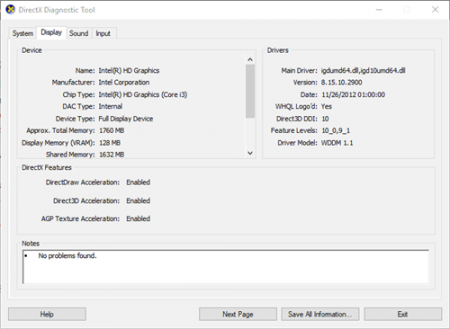
- First, you need to take note of the platform and graphics card information listed in the DirectX Diagnostic Window. You can open this window by pressing the Win key + R.
- Then enter “dxdiag” in the Run text box to open the window directly below it.

- Make a note of the OS details on the System tab.
- Write down the graphics card listed on the display tab.
- Open the website of the graphics card manufacturer such as Intel, Nvidia, or AMD in your browser.
- Next, open the driver download section on the website.
- Select your graphics card and platform from the drop-down menus on the site. Alternatively, enter your graphics card in the search box to find drivers for it.
- Download the latest driver for your platform.
- After that press the Win key + X hotkey.
- Select Device Manager from the Win + X menu.
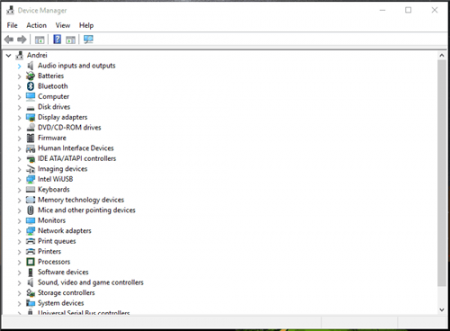
- Double-click Show Adapters, then right-click the specified graphics card and select Update Driver . This option will open the window shown directly below.
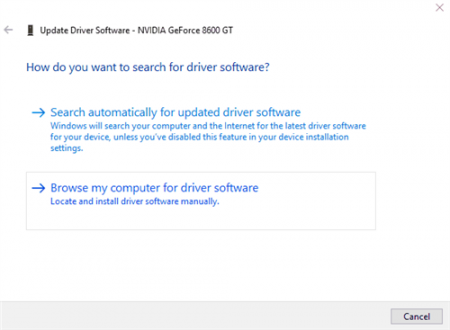
- Then select the Browse my computer option for driver software to open the window shown below.
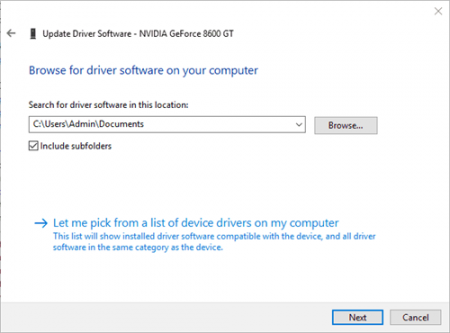
- Click the Browse button and select the folder where you saved the update driver.
- Click Next to install the driver.
One or more of these fixes may restart your Steam games.
