
In today’s automotive technology, “phone connectivity” has almost become a standard feature. Besides Apple CarPlay , Android Auto is one of the most commonly used solutions for Android users. However, many people are still confused about whether it’s for navigation or projection, and why it sometimes fails to connect. This article will help you understand how to turn on Android Auto, how to connect wirelessly, and how to solve connection problems.
Understand the core features of Android Auto in 1 minute
- How to connect: Supports wired (USB) and wireless (Bluetooth + Wi-Fi) connections.
- Supported versions: Wired requires Android 9.0 or higher; wireless requires Android 11.0 (or Android 10 or higher for certain Samsung/Google phones).
- Can I watch YouTube? Currently, YouTube Premium subscribers can only “listen” to YouTube, but Google will soon allow vehicles to watch YouTube videos while in Park (parked).
- Can’t find the app? : It’s built into the system in Android 10 and later. You need to go to “Settings > Apps > Android Auto” to find it.
- What to do if you can’t connect? Try replacing the cable with a high-quality one, restarting your phone and car infotainment system, and checking if Bluetooth, Wi-Fi, and location services are enabled.
What is Android Auto?
Android Auto is essentially a system that “projects” phone functions onto the car’s infotainment screen. Developed by Google, it’s a car platform that allows you to control your phone’s functions, such as navigation, music, and messages, directly through the car’s screen while driving. The key feature is that the interface is specifically designed for driving, featuring larger buttons and voice control, aiming to “reduce driver distraction and improve driving safety.”
▲ Google Maps on Android Auto is more user-friendly than Google Maps on Apple CarPlay.
How do I enable and use Android Auto?
| Connection method | Minimum system requirements | Notes |
| Wired connection | Android 9.0 and above | Requires a high-quality USB-A or USB-C cable. |
| Wireless connection | Android 11.0 and above | 5GHz Wi-Fi and Bluetooth need to be enabled. |
| Wireless connection (except) | Android 10.0 and above | Limited to select Google Pixel and Samsung phones |
Modern smartphones typically have Android Auto pre-installed, eliminating the need for a separate app. Android Auto offers wired and wireless options. Wired connections require only a high-quality USB-A or USB-C cable and a phone running Android 9.0 or higher. It also necessitates a compatible car stereo or a third-party adapter to connect and activate Android Auto.
Wireless Android Auto requires a phone running Android 11.0 or higher, or Google and Samsung phones running Android 10.0 or higher. Samsung Galaxy S8/Galaxy S8+/Galaxy Note 8 phones running Android 9.0 or higher are also compatible. Both phones must support 5GHz Wi-Fi and have Bluetooth and Wi-Fi enabled for pairing.
To use Android Auto in your car, find the “Connect Devices” option (the name may vary depending on the car model), then connect your Android phone to Bluetooth.
▲For vehicles that support Android Auto, once connected, you can select the “Android Auto” icon on the central display screen to operate it.
Can Android Auto play YouTube videos?
Android Auto supports apps like GameSnacks, Google Maps, LINE, Messenger, Weather, Reminders, Calendar, YouTube Music, Messages, Settings, Phone, and Customization.
For media playback, Android Auto also supports streaming music services like Spotify and KKBOX, allowing you to listen to playlists from your phone while driving. However, to avoid distractions while driving, Google hasn’t yet enabled “watching” YouTube, although “listening” to YouTube has recently been made available , but a YouTube Premium subscription is required. To use voice commands, you need to tap the microphone icon or press and hold a button on the steering wheel. Google recently announced in 2026 that it will allow YouTube videos to be played on Android Auto, expanding the in-car screen beyond navigation and music. Google stated that it will gradually lift restrictions, and to ensure driving safety, full video display will only be available in Park (P) mode; while driving, it may automatically switch to audio-only output. Google stated that it will roll out this gradually by region throughout the year, in conjunction with automakers’ update schedules. ▲Google does not currently allow “watching” YouTube, but recently enabled “listening” to YouTube, although you must subscribe to YouTube Premium to use it.
Can’t find the Android Auto app on your phone? Here’s how to find the hidden interface in Settings.
Currently, all Android phones have Android Auto built-in, but there isn’t an Android Auto icon app. To set up advanced Android Auto features on your phone, you need to go to Settings > Apps > App Manager to find Android Auto. Tap it to configure notifications, permissions, and other settings. If you want to further modify video/audio storage and screenshot settings, you need to enable “Developer Mode.” It’s somewhat hidden; you need to tap “Version and Permissions” seven times to unlock it.
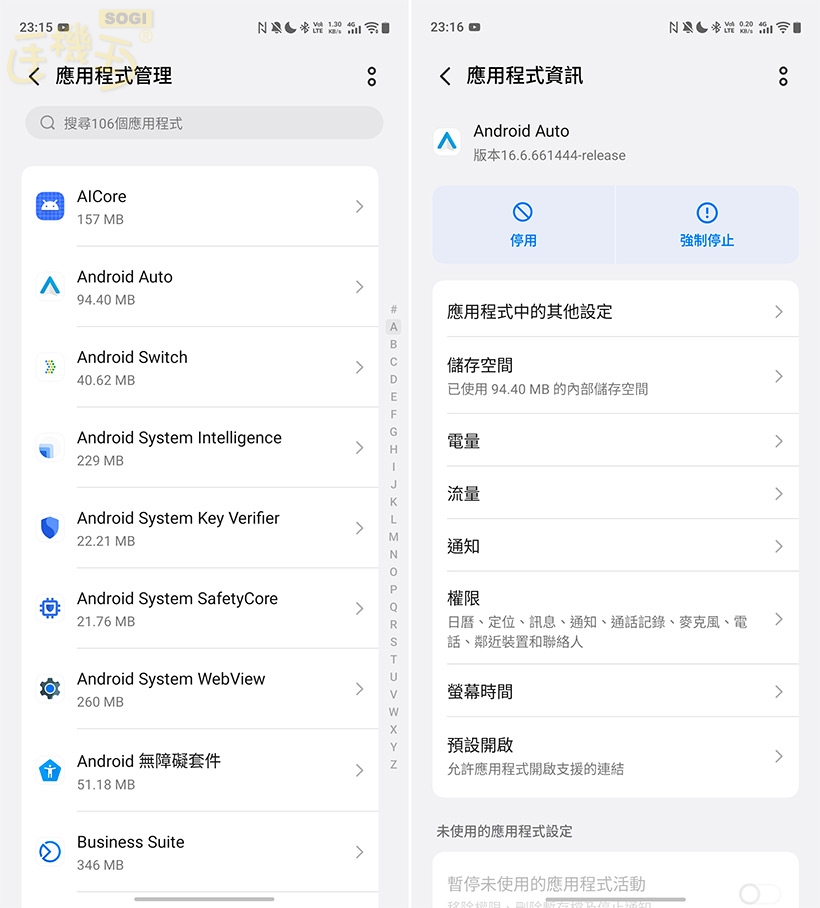
▲ To set up advanced Android Auto features on your phone, you need to go to Settings > Apps > App Manager to find Android Auto.
▲ You need to tap “Version and Permissions” seven times to enable “Developer Mode,” allowing you to further modify video/audio storage, screenshot settings, etc.
How to fix Android Auto connection problems/disconnections? Common troubleshooting methods
If you encounter a problem connecting to Android Auto, first check the USB cable you are using. Ensure it is an original or high-quality cable and that it is undamaged. Next, try restarting both your phone and vehicle’s operating system. This “reboot method” usually resolves most minor technical issues. In your phone’s settings, go to “Apps,” find Android Auto, and ensure that all necessary app permissions have been granted. Confirm that your phone’s Android operating system and the Android Auto app are updated to the latest versions. If wireless Android Auto still won’t connect, check that Bluetooth, Wi-Fi, and location services are all enabled.
▲Android Auto failing to connect is usually caused by a poor quality cable or Bluetooth pairing settings issues.
- Check 1: USB cable issues (whether it is an original cable, whether it is damaged).
- Check 2: Software update status (whether the Android system and Android Auto App are the latest versions).
- Check 3: Wireless connection settings (whether Bluetooth, Wi-Fi, and location services are all enabled).
- Check 4: Restart (Restart both the phone and the vehicle’s infotainment system to resolve the temporary bug).
