Minecraft is a world of endless adventures, where every corner holds its secrets and details are sometimes hidden in the distance. To see an object in all its glory, players sometimes need to zoom in on the screen. Luckily, there are several ways to do this, from purely “vanilla” methods to powerful modifications that turn ordinary zooming into real observation magic.
In this article, we will take a detailed look at how to zoom in on the screen in Minecraft, what tools to use, and what tricks will help you see even the most distant objects and buildings.
Why you sometimes need to zoom in on the camera
In Minecraft, the ability to zoom in on the camera opens up a whole new way of looking at the game. It turns ordinary exploration into a real adventure: suddenly, standing on a hilltop, you raise a telescope to your eye – and somewhere in the distance, the outlines of a village begin to appear. Another step and you would have passed by, but as you zoom in, you notice the smallest details: the light of torches, the silhouettes of villagers, the tower of a church. What was once just a distant blur becomes a specific goal.
Zoom is not only helpful to the traveler, but also to the cautious player. In the darkness of caves, it becomes your eyes: with its help, you can see whether a crowd of zombies is waiting ahead or everything is clear. Often, it is the zoom that saves you from a sudden attack by a skeleton hiding in the shadows and ready to shoot an arrow. This small advantage allows you to plan your steps and save your life.
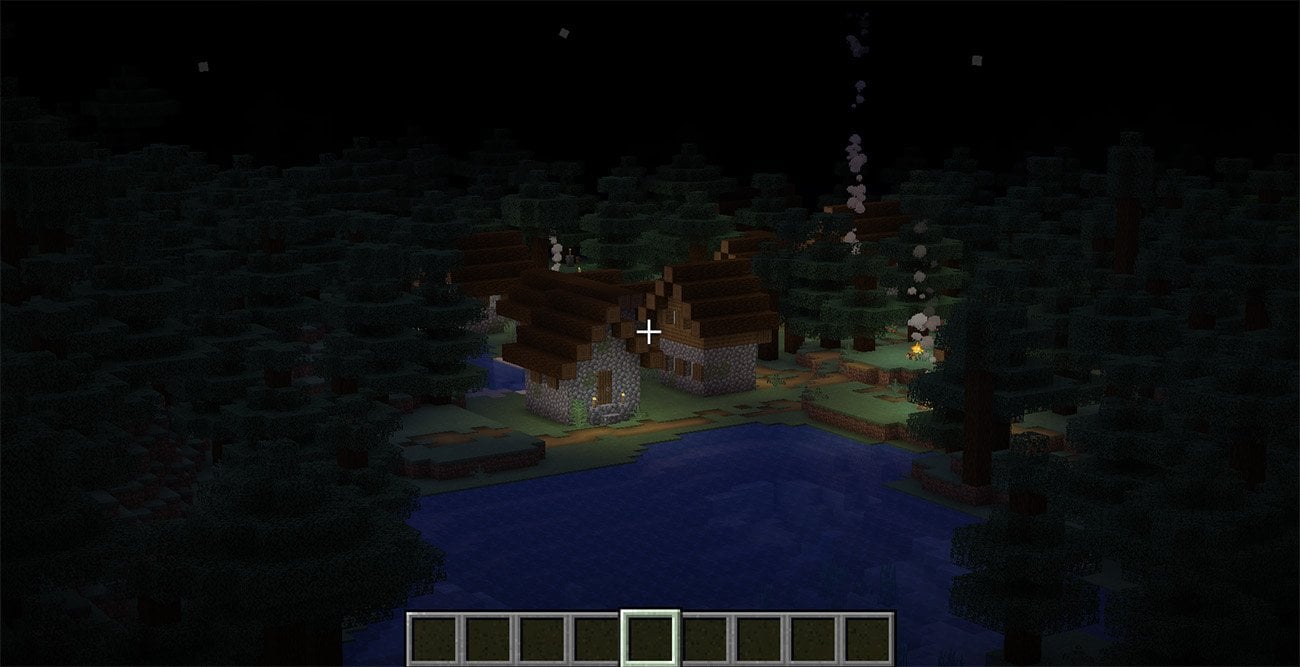 Source: CQ.ru / Village in Minecraft
Zoom is no less important for a builder. When you create something grand, be it a castle or a sky bridge, you want to look at the whole structure, evaluate the lines and symmetry, see how the details fit together. By zooming in, you can admire the result of your work and correct what seems imperfect.
And of course, zooming adds atmosphere to the game. Imagine looking at a huge castle immersed in fog, or watching the moon rise over the mountains. All this turns Minecraft from a simple “sandbox” into a world full of beauty and mystery. Even simple moments – seeing a sign in the distance or noticing a chest in an abandoned mine – become small discoveries.
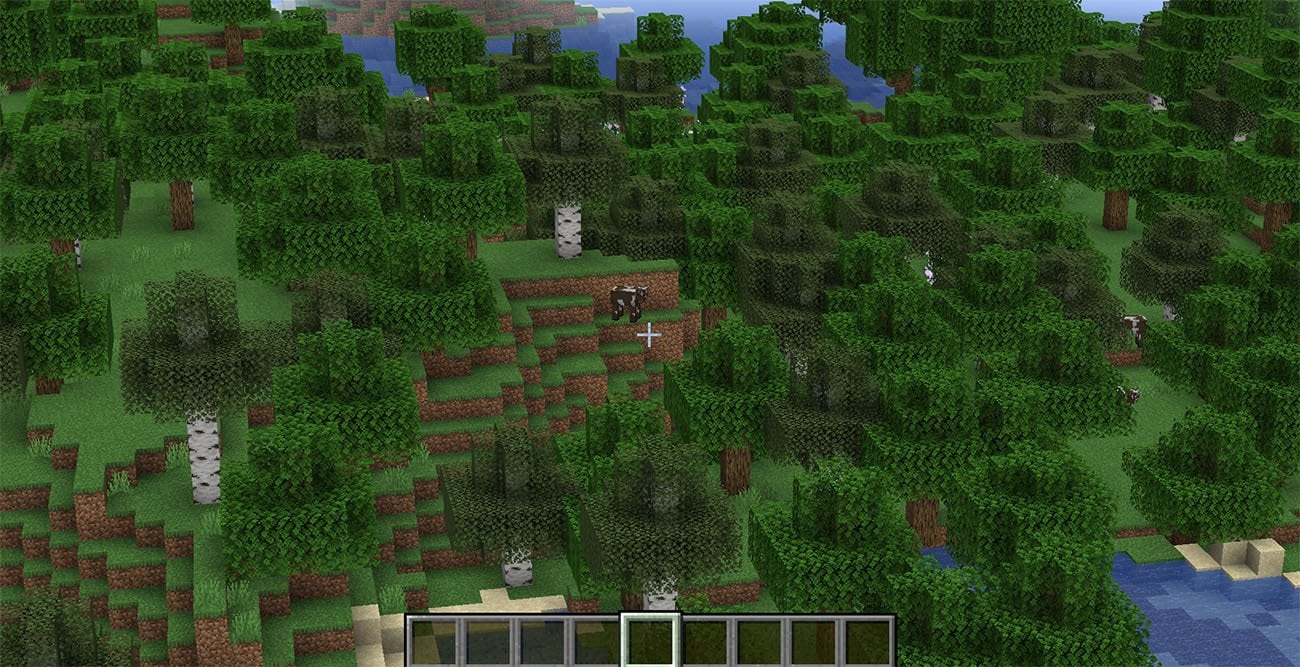
So, the camera zoom is not just a convenience. It is a tool of the researcher, the defender and the artist at the same time. It makes the game deeper and richer.
How to zoom in on the camera in Minecraft
Vanilla Methods
Minecraft has so-called “pure” or vanilla ways to zoom in on the camera – that is, those that do not require mods and are available to absolutely every player. They are built right into the game, so they work both in singleplayer and on servers, on Java and Bedrock versions. There are few such methods, but both of them are simple and clear: a telescope and adjusting the field of view.
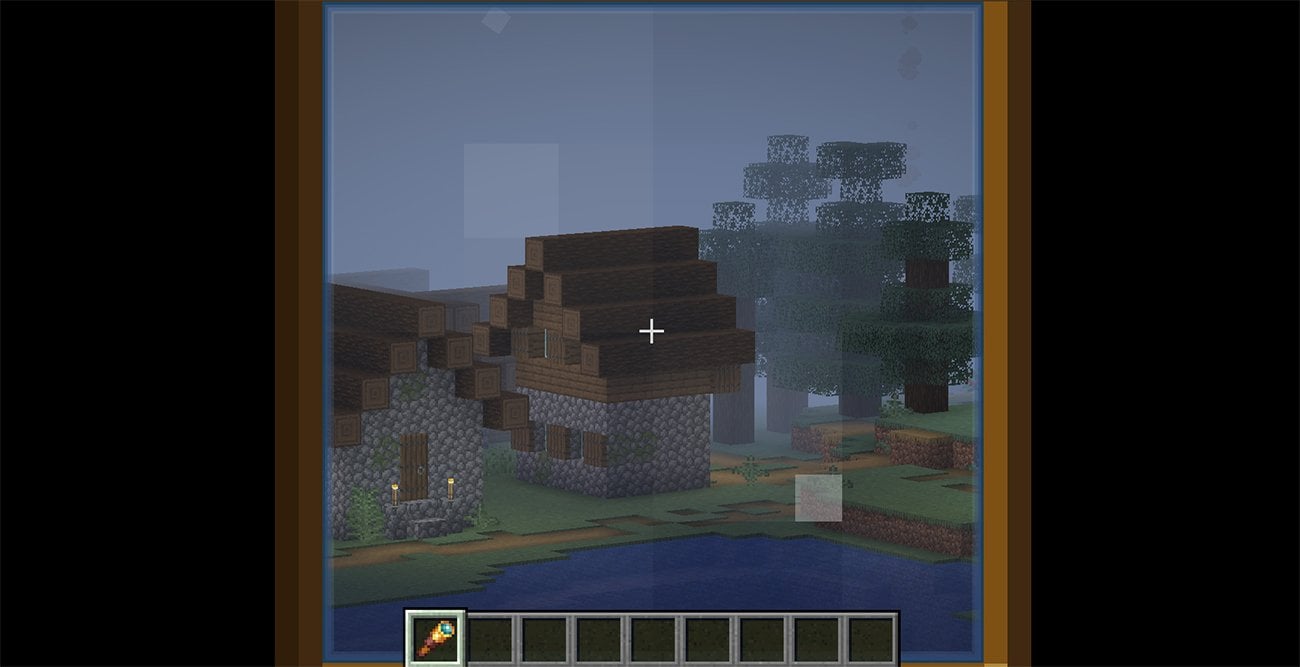
The first and most obvious option is the spyglass, which appeared in update 1.17. This item allows you to zoom in on the image, although with a characteristic dark vignette around the edges. To craft it, you need to try a little: first, mine copper ore and smelt it into two copper ingots, then find an amethyst geode in the depths of the caves and collect one amethyst shard with a pickaxe.
In the workbench, the recipe looks simple: a shard on top and two ingots underneath, as in the picture.
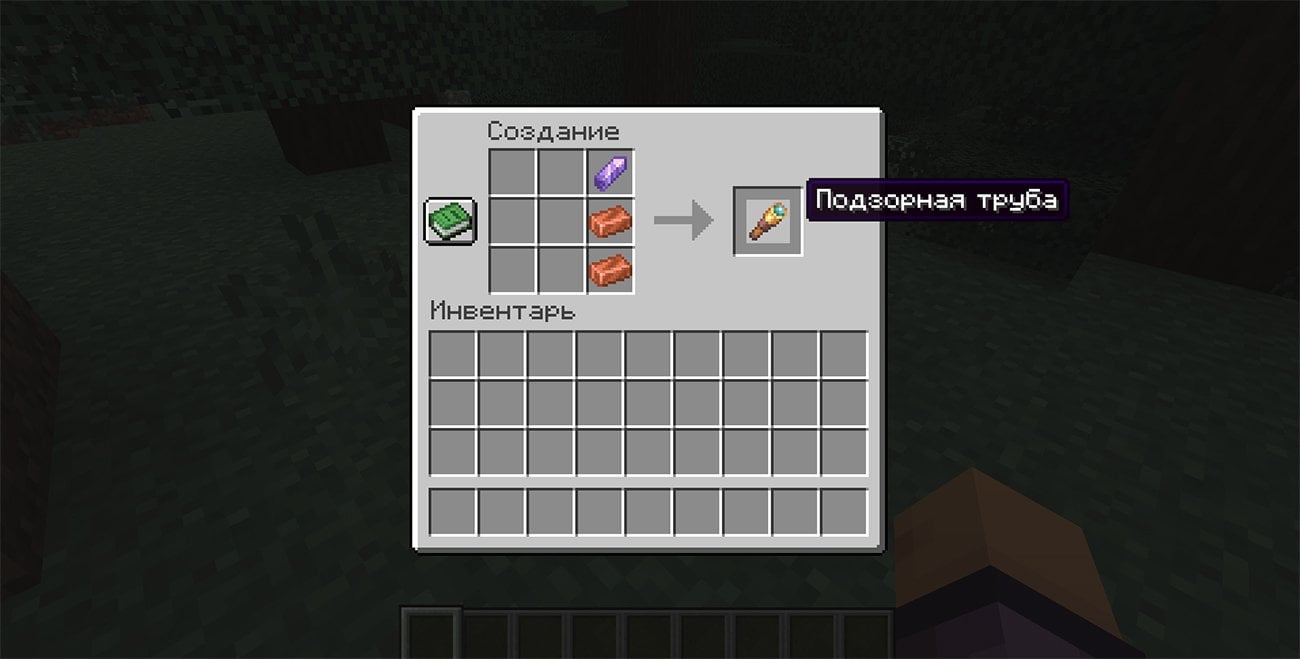
After that, you can take the pipe in your hand and use it – on PC, just hold down the right mouse button. This is a fair and accessible method for all players, although it has its drawbacks: fixed zoom and inevitable vignette.
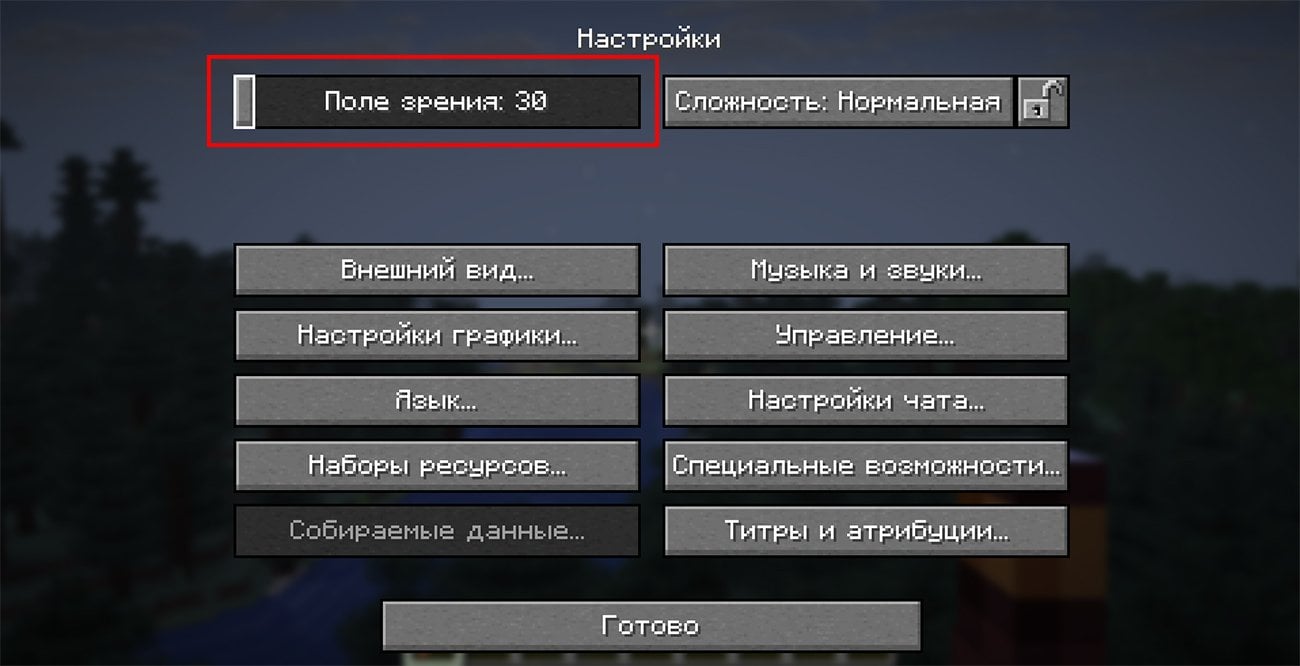
The second way to do without mods is to work with the field of view settings. The smaller the FOV, the closer the image seems. In the Java version, just open the menu “Settings – Options – Field of View” and move the slider to the left, for example, to a value of 30-50. In Bedrock, everything is done almost the same way: the FOV setting is in the “Video” section.
True, there is one nuance: this method does not provide a quick temporary zoom, because to change the viewing angle, you will have to go into the menu again. But it is convenient for those who want to constantly play with a “closed camera”. If distortion during sprinting or under potions interferes, you can also turn it off in the settings.
Even without mods, the player has a choice: use a telescope to see details from afar, or adjust the viewing angle to suit yourself. These methods are simple, always work, and help make the world of Minecraft even more convenient and interesting to explore.
Another way
If vanilla camera zooming methods seem too limited, players turn to “impure” options – those that work through mods and third-party client improvements. The most famous and beloved by millions of players tool for this is OptiFine.
It not only adds a convenient zoom, but also makes the game more beautiful and optimized: it speeds up the work, opens support for shaders and provides fine-tuning of graphics. But the most appreciated is the zoom function, because it is convenient, instant and does not require an object like a telescope.
To use OptiFine, you first need to download it. It is important to do this only on the official website , because other resources often have fakes. On the website, select your version of Minecraft (for example, 1.20.1) and click “Download”. Usually a page with an ad opens, where you will have to wait 5 seconds and click “Skip” – only after that will the real OptiFine .jar file be downloaded.
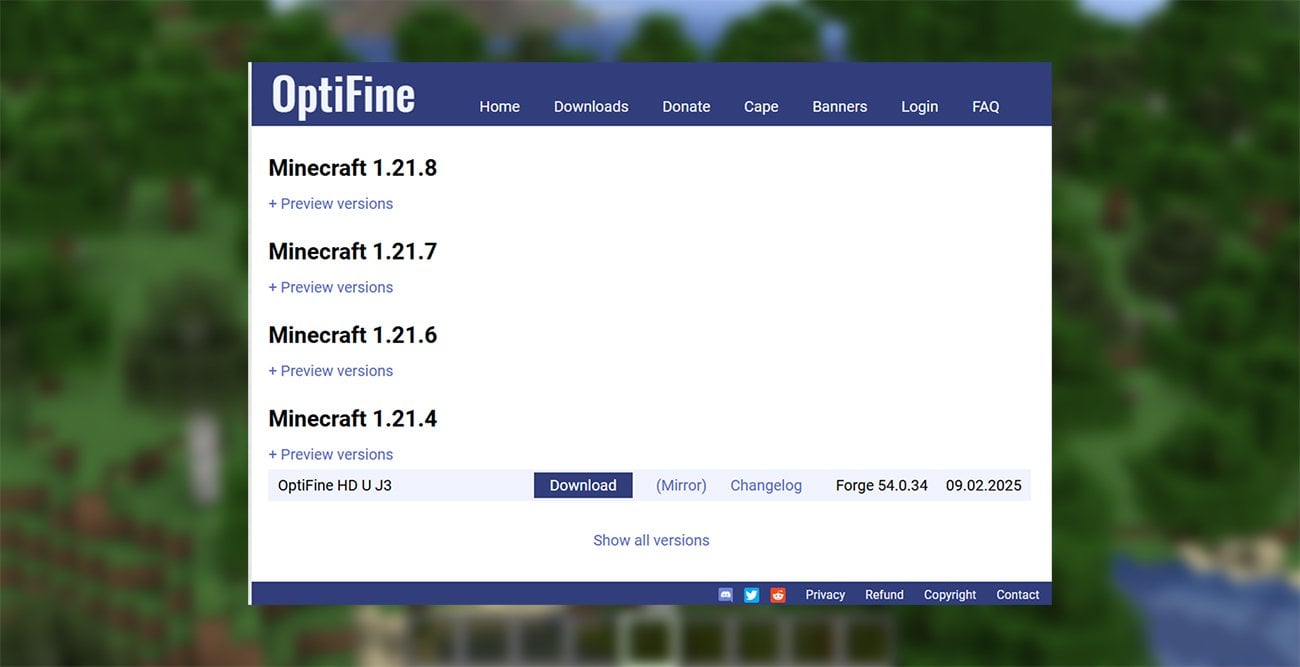
The installation is very simple. If you do not use other mods, just double-click to run the downloaded file. A small window will appear in which you need to click “Install”. After that, a new OptiFine profile will appear in the Minecraft launcher – select it and run the game. That’s it, the mod is ready to work.
If you have other mods and play through Forge, the procedure is slightly different. First, install Forge itself for the desired version of the game. After the first launch, Forge will create a mods directory in the .minecraft folder. Simply drag the downloaded OptiFine file into it, and select the Forge profile in the launcher. The next time you launch, OptiFine will be picked up automatically, like a regular mod.
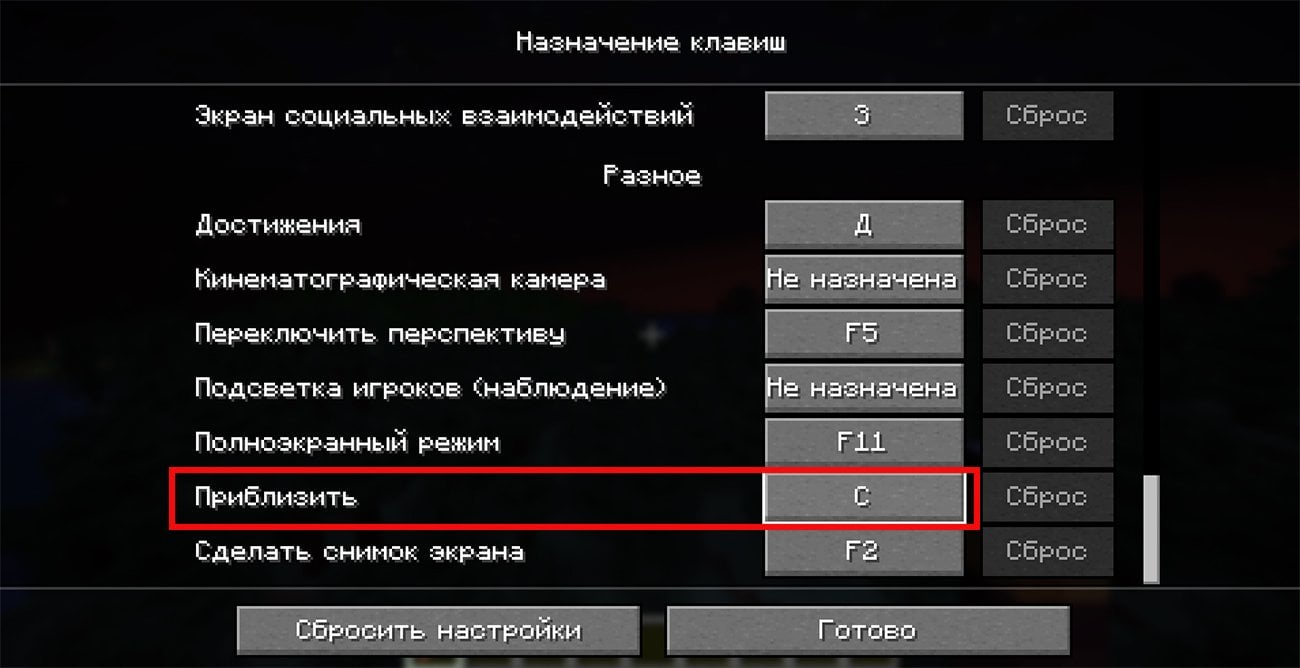
When OptiFine is installed, zooming is a breeze. By default, it is bound to the C key – hold it down, and the picture smoothly zooms in. If you want to assign another key, go to the menu “Settings – Controls – Zoom in” and change it to the key that is most convenient.
The main advantage of OptiFine is that it provides fast, smooth and always available zoom without any limitations. No vignettes like with a telescope, and no constant picking in the FOV settings. But it is also a whole set of improvements: with it, the game runs faster, looks brighter, and the graphics can be adjusted to the smallest detail.
There is only one minus – OptiFine exists only for the Java version, you can’t install it on Bedrock. And on some servers mods are limited, although OptiFine is allowed almost everywhere.
Now you know how to zoom in on Minecraft, each method allows you to examine distant objects, evaluate buildings or carefully study the world around you. The main thing is to experiment and choose the method that will make your exploration of the Minecraft world comfortable and exciting.